If you are a government employee and want to learn how to submit a Tour TA claim in PFMS without mistakes, you are in the right place.
As you know, the government introduced PFMS earlier, but it was not initially used for submitting personal claims like Tour TA, Transfer TA, LTC, or medical claims. Now, every central government employee is required to submit such claims through the e-Claim module in PFMS. The PFMS e-claim Tour TA module allows employees to submit claims online easily.
Table of Contents
- 1. What is Tour TA (Travelling Allowance)?
- 2. Time Limit to Submit Tour TA Claim in PFMS
- 3. Pre-Requisites Before Submitting Tour TA Claim in PFMS
- 4. Documents Required for Tour TA Claim in PFMS
- 5. How to Submit Tour TA Claim in PFMS (Step-by-Step Process)
- 5.1. Login to PFMS
- 5.2. Generate Claim Reference Number
- 5.3. Write Down CRN (Claim Reference Number) on Bills/Vouchers
- 5.4. Submitting Tour TA Claim
- 6. Common Mistakes to Avoid While Submitting Tour TA Claim in PFMS
- 7. Conclusion
- 8. FAQs on Tour TA Claim in PFMS
Many employees have already started submitting their Tour TA claim in PFMS, but a large number of them still make mistakes during the process.
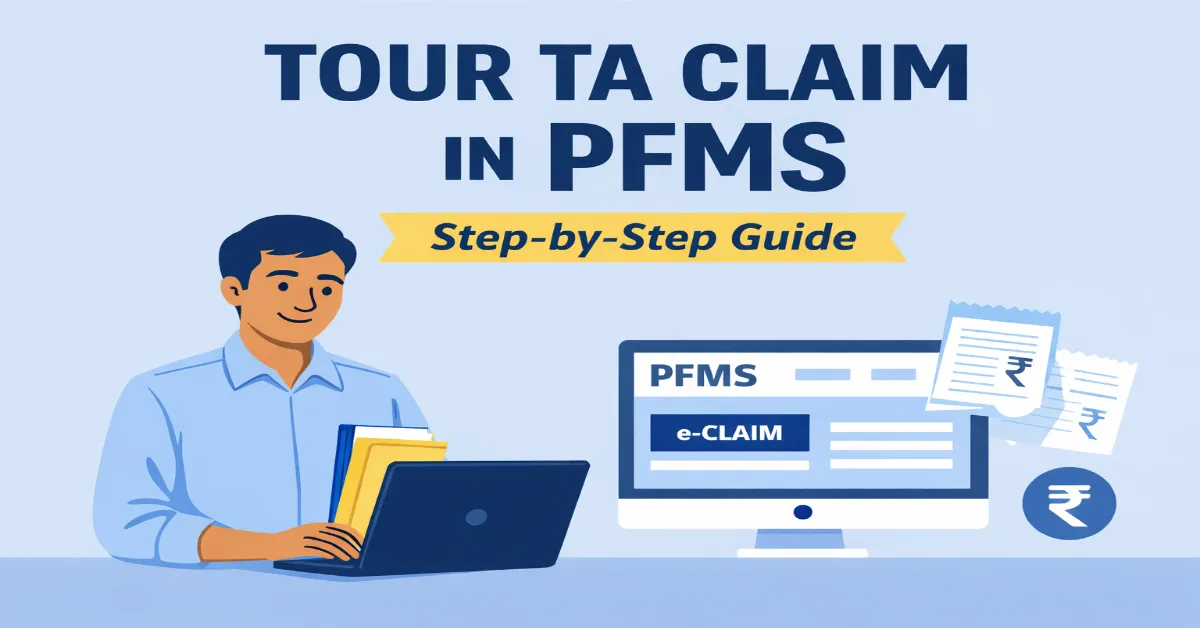
In this blog post, we will go step by step to understand how to submit a Tour TA claim in PFMS without making mistakes, so that your Accounts Section can process it smoothly and the PAO office can approve it without delay. This article will guide as a complete PFMS e-claim module guide for Tour TA.
What is Tour TA (Travelling Allowance)?
Tour TA (Travelling Allowance) is a reimbursement given to Government servants for expenses incurred during official tours, such as travel fare, daily allowance and accommodation. This applies when an employee travels for official duties such as inspection, meeting, auditing, training programme, attending departmental court cases etc.
If you want to understand Tour TA in detail, including its rules, eligibility and calculations, you can read our full guide on Tour TA here.
Time Limit to Submit Tour TA Claim in PFMS
As per GFR-2017 and MoF O.M. dated 13.03.2018, a government employee must submit the Tour TA claim within 60 days from the date of completion of the journey. If not submitted within this period, the claim stands forfeited. Therefore, always submit your Tour TA claim in PFMS as soon as possible after completing the tour.
Now that you understand the basics of Tour TA, let’s move on to the most important part -How to submit Tour TA claim in PFMS.
But before moving to submit TA claim in PFMS you must know about some requisites and mandatory/supporting documents.
Pre-Requisites Before Submitting Tour TA Claim in PFMS
PFMS login and registration: Since you are going to submit your TA claim in PFMS, you need to register on PFMS and create a login ID and password. This is the first mandatory step to begin the Tour TA bill PFMS process.
You can register in PFMS using your PAN number or official government email ID. However, your PAN or email ID must be mapped by your DDO before registration. For this, you can contact your DDO or Accounts Section.
Documents Required for Tour TA Claim in PFMS
Below are the documents required for submitting Tour TA claim in PFMS:-
i) Tour approval / Tour program: Before going on an official tour, you must obtain approval from the competent authority. This is generally required when a government employee travels for meetings, inspections, or audits. It certifies that you travelled for official purposes. You can prepare a simple tour program mentioning your travel details and purpose, and get it approved by the competent authority with designation and seal. You can use a format like the one shown below.
                               Tour Approval Certificate
It is certified that Shri/Smt (your name and designation, office name) has visited / the unit/office/entity (name) -----located at for the purpose of audit (in case of auditing) /inspection/meeting (in case of attending meeting) on (date/s). The said tour programme is hereby approved.
ii) Nomination letter: This is required when an employee is deputed for training, election duty, or similar purposes where a nomination letter is issued by the department or government authority. In such cases, separate tour approval may not be required.
iii) Relief report: If you are going for training, you need to upload the relief report issued by your office.
iv) Air/Train/Bus tickets: These are mandatory documents. Without them, travel charges will not be reimbursed.
v) Boarding passes: If you travel by air, you must also upload boarding passes.
vi) Accommodation bill / voucher: If you stay in a hotel, lodge, or guest house, you should obtain a proper bill. For employees up to Level 8, accommodation charges can be claimed through self-certification if bills or vouchers are not available.
vii) Local travel (within city) self-certification: For travel within the city under Daily Allowance, employees in Pay Level 9 to 11, self-certification is also accepted, provided details like travel period and mode of transport are mentioned.
How to Submit Tour TA Claim in PFMS (Step-by-Step Process)
In this section, we will explain each step in a simple and clear way so that you can submit Tour TA claim in PFMS without making any mistakes. Make sure you have all the necessary documents and details ready before starting the process, as this will help you complete the claim easily. This PFMS TA claim step by step guide will help you complete your claim without errors.
Follow the steps given below carefully:
Login to PFMS
Since you have already created your user ID and password in PFMS, you can log in using these credentials.
Generate Claim Reference Number
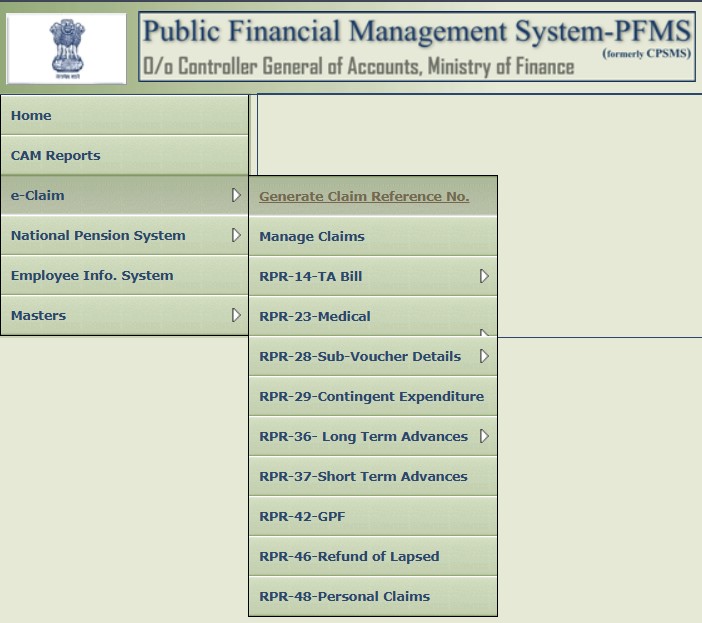
After logging into PFMS, you will see a dashboard with several options on the left panel. Move your cursor over e-Claim and click on the option “Generate Claim Reference No.” as shown in the image below.
Now, you will see a section with the following fields:
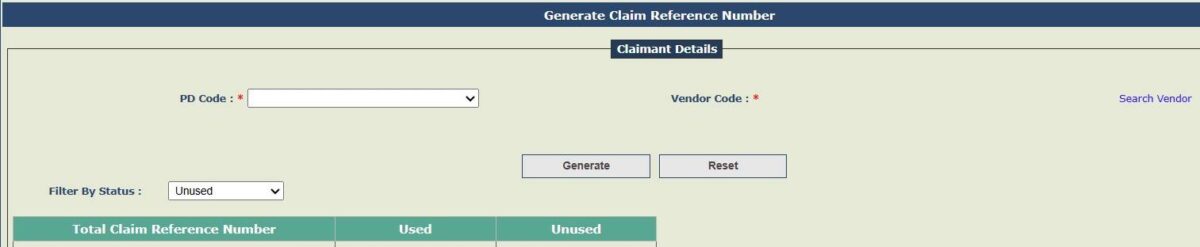
- Left side: PD Code
- Middle: Vendor Code (marked with an asterisk *)
- Right side: Search Vendor
Select your office PD Code correctly. If you are not sure about your PD Code, you can ask your Accounts Section. After selecting the correct PD Code, click on the Search Vendor option available on the right side.
Now, you will see some blank fields as shown in the image below. You do not need to enter any details here, just click on the Search button.

After clicking Search, a list of details will appear below. Click on the first option, i.e., Vendor Code.
You will be redirected back to the previous page, where your Vendor Code will now be displayed.
Finally, click on the Generate button below the Vendor Code field. PFMS will generate a unique Claim Reference Number.
Make sure to note down this number, as it will be required in the next steps.
Write Down CRN (Claim Reference Number) on Bills/Vouchers
Since you have generated the CRN for submitting your Tour TA claim, you must write this CRN clearly and visibly on all bills and vouchers that contain an amount. There is no need to write the CRN on other documents such as the tour approval, nomination letter, or relief report.
After writing the CRN on all required bills and vouchers, scan all the documents properly so that they are clearly visible and not blurred, and save them on your computer for uploading in the next steps.
Submitting Tour TA Claim
Now you can create a new claim and submit your Tour TA claim. Follow the step-by-step process given below:
Step 1: Open Tour TA Claim Form
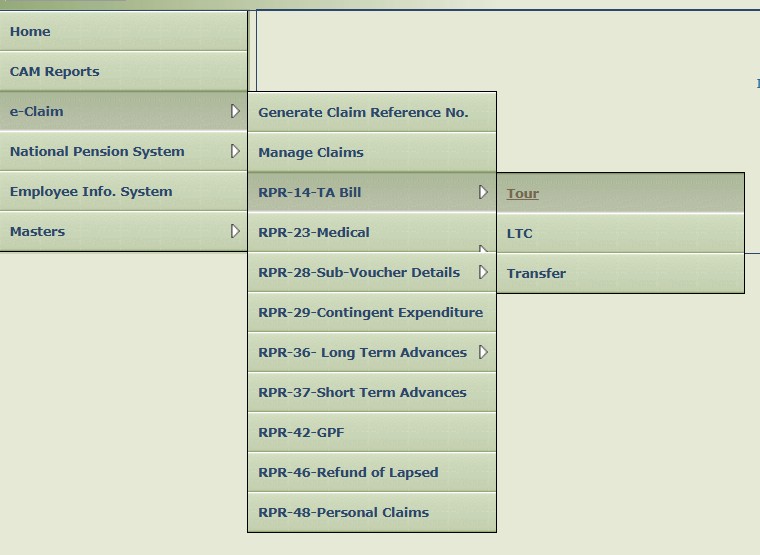
Again, move your cursor over e-Claim on the left panel. You will see different claim types. Now, hover over RPR-14 -TA Bill, and you will get three options: Tour, LTC, and Transfer. Click on the Tour option as shown in the image below.
After clicking, the RPR-14 TA -Tour page will open. This page contains six parts:
- Claimant Details
- Claim Details
- Journey Details
- Date of absence from place of halt
- Daily Allowance on Tour
- Supporting Documents
Step 2: Fill RPR-14 TA Form
In this section, you will learn how to fill TA bill in PFMS correctly. You will need to fill in the following details one by one:
Claimant Details: – Start with the first section, i.e., Claimant Details. Here, you will see a field for PD Code. Select the correct PD Code of your office. If you select the wrong PD Code, your claim may be submitted to another office.
Now, click on Search Vendor, and a pop-up window will open. In the pop-up, simply click on your Vendor Code, and you will be redirected back to the RPR-14 TA – Tour page.
You will notice that some details are filled automatically. Fill in the remaining mandatory fields carefully in the Claimant Details section.
Important Notes:
1. Enter your correct Pay Level, as your TA/DA eligibility and entitlements will be calculated based on it.
2. Always click on “Intermediate Save” after entering details in each section. If you do not save your entries regularly, you may lose all the data entered due to session timeout or technical issues..
Claim Details:- This is the next section of the Tour TA claim page. Here, the first option you will see is Reference No. with a drop-down. You need to be very careful while selecting this, as you must choose the same reference number (CRN) that you generated earlier and wrote on all your bills and vouchers.
In this section, you will also see the option Advance Drawn. If you have taken any Tour TA advance and are submitting the final claim for the same tour, select Yes; otherwise, keep it No.
If you select Yes, an additional section called Advance Details will appear. Here, you need to select the CRN under which you submitted your Tour TA advance claim. Once you select the CRN, the remaining details will be filled automatically.
Journey Details:- This is the most important part of the Tour TA claim page, where you have to enter all your journey details.
You can easily select the date and time of departure from the starting point and the date and time of arrival at the destination.
In the From Place and To Place fields, enter a brief address of the locations. You can mention the locality, office name, or premises along with the area. Since road mileage is also allowed, mentioning the correct locality or area is important for proper calculation. If you are not sure what to enter, you can ask your Accounts Section.
In the next field, enter the distance between the From and To places. Try to provide the correct distance as much as possible. You can use Google Maps to find the approximate distance.
Next is Mode of Travel, where you can select options like Air, Rail, Bus, Ship, or Others. If you select Others, an additional field will appear where you need to specify the mode of travel, such as own car, own bike, taxi, cab, or shared vehicle.
After that, you need to fill in the Travel Class. For example:
- Air: Economy or Business
- Rail: 2S, Sleeper, AC-III, AC-II, or AC-I
- Bus: AC or Non-AC
- Own vehicle, taxi, cab: AC or Non-AC
The remaining fields are simple and can be filled easily.
Date of Absence from Place of Halt:- In this section, you need to provide details related to your absence during the tour.
(i) R.H. and C.L.: Select Yes if your tour includes Restricted Holiday (R.H.) or Casual Leave (C.L.); otherwise, select No.
(ii) Not being actually in camp on Sundays and Holidays: Select Yes if you were not present at the place of halt on Sundays or holidays during the tour; otherwise, select No.
Fill these options carefully, as they may affect your Daily Allowance (DA) calculation.
Daily Allowance on Tour:- This is the next section of the Tour TA claim page, which contains three parts:
- Stay in Hotel/Guest House/Others
- Travelling charges at the camp station
- Food charges (if applicable)
Let’s understand each part one by one.
i) Stay in Hotel/Guest House/Others: Most of the fields can be filled easily, such as dates, number of days, and the name of the hotel/guest house. The important part is the daily rate of lodging charged, which should exclude taxes. You can find this rate on the hotel/guest house invoice.
Some guest houses do not charge taxes and mention only a single amount. If the invoice shows the daily rate and taxes separately, you should enter both values separately in the respective fields.
ii) Travelling charges at the camp station: Here, you need to provide details of local travel at the place of halt.
iii) Food Charges (if applicable): This is also an important part of the Tour TA claim. In this section, you can claim food charges as per your entitlement based on your pay level.
Many officers think that they cannot claim food charges if they have not actually spent money on food. However, officers on official tour are eligible for food charges, which are paid as a lumpsum amount based on their pay level.
So, you should select Yes and enter the amount as per your eligibility. The entitlement of food charges according to pay level is as follows:
| Pay Level | Rates (Rs.) per day |
|---|---|
| 14 & Above | 1500 |
| 12 & 13 | 1250 |
| 9 to 11 | 1125 |
| 6 to 8 | 1000 |
| 5 & below | 625 |
Make sure you enter the correct rate based on your pay level to avoid any errors in your claim.
Step 3: Documentation and Certifications
After filling all the mandatory details, you need to select the relevant checkboxes in this section. You can easily understand which boxes to select based on your claim details and the documents you have uploaded.
You will also see a Certifications section. Make sure to select all the required certification checkboxes carefully. If you miss any of these, your claim may be returned by the PAO, and you may have to resubmit it, which will cause unnecessary delay.
Step 4: Uploading Supporting Documents
In this section, you have to upload all mandatory and supporting documents in PDF format only. There are five slots available for uploading files, and in each slot you can upload a file of up to 2 MB in size.
Also, make sure that the file name does not exceed 25 characters.
Step 5: Save and Submit for DSC
This is the final step for submitting your Tour TA claim in PFMS. When you click on “Save and Submit for DSC”, a message will pop up indicating that your claim will be available shortly for digital signing. You will then be redirected to the Manage e-Claims page.
Here, select Claim Type as TA–Tour and Status as “Pending for DSC at Claimant“. Your claim will appear in the list. Click on the Claim Reference Number (CRN) to open your pre-filled claim.
Scroll down to the end of the page, where you will see options for signing the claim. If you have a DSC (Digital Signature Certificate) installed on your system, you can select the DSC option. Otherwise, you can choose eSign, which is preferred by most users.
eSign is an Aadhaar-based digital signature method, where you can complete the signing process using an OTP.
Once you complete the signing process, your Tour TA claim will be successfully submitted in PFMS.
Common Mistakes to Avoid While Submitting Tour TA Claim in PFMS
Many Tour TA claims get delayed or rejected due to small mistakes made during submission. Some common mistakes are explained below:
- Not writing the Claim Reference Number (CRN) on bills and vouchers: Many claimants forget to write the CRN on their bills and vouchers before uploading them. This is a common mistake, and due to this, the Accounts Section may return the claim for correction.
- Not uploading the tour program: The tour program is a mandatory document that proves you travelled for official purposes. If you do not upload it, your claim may not be approved by the PAO.
- Uploading documents with large size or improper format: PFMS allows uploading files up to 2 MB only. If your documents are larger than this or not properly merged, the upload may fail or remain incomplete.
- Delaying the submission of the claim: Some employees wait for a long time before submitting their Tour TA claim. This may lead to delay in reimbursement or even rejection in some cases.
- Entering incorrect or incomplete details: Mistakes in filling details like PD Code, dates, distance, or Pay Level can lead to rejection. In such cases, the claim has to be returned by the Accounts Section and again by the DDO, which wastes time.
These are common Tour TA claim mistakes in PFMS that you should avoid. Therefore, always check your claim carefully before final submission to avoid unnecessary delay and effort.
Conclusion
In this blog post, you have learned how to submit a Tour TA claim in PFMS, and you can see that it is not difficult to submit a claim in the e-Claim module.
If you follow the correct procedure and avoid common mistakes, your claim will not be rejected and can be passed without delay.
So, before final submission of your Tour TA claim in PFMS, always double-check your entries and uploaded documents. With careful submission, you can complete your claim without any issues.
FAQs on Tour TA Claim in PFMS
Can I edit my Tour TA claim after submission in PFMS?
No, once you submit the claim for DSC/eSign, you cannot edit it. If there is any mistake, the claim must be returned by the Accounts Section or DDO for correction.
What are the mandatory documents required for Tour TA in PFMS?
The mandatory documents include your approved Tour Program or nomination letter, travel tickets (Air, Train, or Bus), and boarding passes if you travelled by air. Additionally, you must upload accommodation bills, though employees up to Pay Level 8 may use self-certification if bills are unavailable.
What happens if I select the wrong PD Code?
If you select the wrong PD Code, your claim may be submitted to another office. In such cases, the claim may be rejected or delayed
Can I claim Tour TA without uploading tickets or bills?
No, travel tickets (air/train/bus) are mandatory for claiming travel charges. However, in some cases like accommodation or local travel, self-certification is allowed as per rules.
Why does the PFMS TA claim get rejected most often?
Claims are frequently rejected or returned due to missing tour programs, failing to write the CRN on bills, or selecting the incorrect PD Code during the entry process. Errors lead to delays because the claim must be returned by the DDO through a digital signature process.
Can I claim food charges without submitting actual bills?
Yes. Government employees on official tour are entitled to food charges as a lumpsum amount based on their Pay Level. You can claim this amount even if you have not maintained specific bills for your meals.